

Feeling bogged down by the constant grind of plugin updates, security patches, and server headaches on WooCommerce? You're not alone. Many business owners hit a wall where managing the platform's technical demands starts to actively hinder their growth. That's when making the move from WooCommerce to Shopify becomes less about chasing shiny new features and more about getting back to what you do best—running your business.
Why Smart Businesses Are Making the Switch to Shopify
If you're here, you probably know the double-edged sword of a self-hosted platform. WooCommerce gives you total freedom, but that freedom has a price tag: your time and your sanity. Every plugin update is a small gamble, every security warning is a reminder of your vulnerability, and every traffic spike brings that nagging fear of your server giving out.
This relentless technical upkeep is the single biggest reason merchants start looking elsewhere. They find themselves playing the role of an accidental IT manager instead of focusing on product, marketing, and customers. Shopify's appeal is simple: it takes all of that off your plate with a fully hosted, all-in-one solution.
The Allure of Simplicity and Stability
Picture this: it's Black Friday, your ads are firing on all cylinders, and you're not worried about your site crashing. That's the peace of mind Shopify is built to deliver. As a hosted platform, they handle all the complex, behind-the-scenes work for you.
This isn't just about convenience; it's a fundamental shift in how you operate.
- Rock-Solid Uptime: Shopify guarantees 99.98% uptime. This means your store stays open for business, period. It's not an add-on or a premium feature; it's just how the platform works.
- Security You Don't Think About: All security and PCI compliance? Handled. Shopify is Level 1 PCI DSS compliant out of the box, so you don't have to worry about patches or protecting customer data. It's baked right in.
- Scaling on Autopilot: As you grow, Shopify just… works. There are no hosting plans to upgrade or servers to reconfigure. The infrastructure is built to handle massive traffic spikes without you lifting a finger.
This built-in reliability is why the migration trend is so strong. In fact, current market data shows Shopify powering 26.2% of all ecommerce sites, edging out WooCommerce's 20.1%. For high-traffic stores, that gap widens considerably. It's no surprise that businesses often see a 15-30% average increase in sales after making the switch, driven largely by Shopify’s superior performance and conversion-focused environment. If you want to dive deeper into the data, you can read more about the benefits of migrating to Shopify.
"The real value in migrating to Shopify isn't just about adding new features. It's about subtracting distractions. You trade plugin management for marketing strategy and server maintenance for customer engagement."
To really understand this shift, it helps to see the core philosophies of each platform side-by-side.
WooCommerce vs Shopify Key Differences at a Glance
| Feature | WooCommerce (Self-Hosted) | Shopify (Hosted) |
|---|---|---|
| Hosting | You find, pay for, and manage your own hosting. | Included in your monthly plan; fully managed by Shopify. |
| Security | Your responsibility. Requires SSL certificates, firewalls, and regular security patches. | Handled by Shopify. Includes SSL and Level 1 PCI DSS compliance. |
| Maintenance | Constant. You manage all theme, plugin, and WordPress core updates. | Zero technical maintenance. Shopify handles all platform updates. |
| Scalability | Depends on your hosting plan. Requires manual upgrades for traffic spikes. | Automatic. The platform scales seamlessly to handle any amount of traffic. |
| Support | Relies on community forums, hosting providers, or freelance developers. | 24/7 dedicated support via chat, email, and phone is included. |
| Cost Structure | Lower initial cost (free plugin), but hidden costs for hosting, premium plugins, and developer fees add up. | Predictable monthly subscription. Transaction fees apply unless using Shopify Payments. |
The table makes it clear: the choice isn't just about features, but about where you want to invest your energy.
Focusing on Growth, Not Just Maintenance
At the end of the day, moving from WooCommerce to Shopify is a strategic business decision. You're investing in a stable foundation so you can stop putting out fires and start building your brand.
By shedding the technical debt that comes with a self-hosted store, you free up an incredible amount of time and money. Those resources can be channeled directly into things that actually move the needle: launching new products, running killer marketing campaigns, and creating an amazing customer experience. You get to be a CEO again, knowing the technical side of your business is in expert hands.
Your Pre-Migration Planning Checklist
Moving from WooCommerce to Shopify isn’t like flipping a switch; it's a full-blown project. Trust me, jumping in without a solid plan is the quickest way to end up with lost data, broken SEO, and a lot of confused customers. Think of this stage as drawing up the architectural blueprints before you even think about breaking ground.
Getting this prep work right from the start ensures a much smoother, more predictable transition. It all comes down to auditing your current store, grabbing a clean backup for peace of mind, and really understanding the data you’re about to move. A few hours spent here will save you countless headaches later.
Conduct a Full Store Audit
Before you touch a single piece of data, it’s time for some serious spring cleaning. Over the years, your WooCommerce store has probably collected a fair bit of digital dust—outdated products, unused plugins, and messy customer data. Moving all that clutter over to Shopify is like packing junk when you move to a new house. It just creates problems in your new space.
Start by getting ruthless with your product catalog.
- Declutter Products: Find and delete any old, discontinued, or test products that have no business being on your new site.
- Refine Product Data: Scan your product titles, descriptions, and SKUs for consistency. Are your images high-quality and properly named? Now’s the time to fix them.
- Analyze Customer Lists: Take a look at your customer segments. Do you really need to migrate inactive accounts from five years ago? Cleaning this up now simplifies the import later.
This audit is also the perfect opportunity to assess your plugins. WooCommerce lives and dies by them, but you won't be bringing them along for the ride. Instead, you'll be looking for their equivalents in the Shopify App Store.
My Pro Tip: Make a simple list of every plugin you use. But don't just write down the name—note its core function. For example, instead of just "YITH Wishlist," write "Adds wishlist functionality." This list will be your roadmap when you start hunting for apps on Shopify.
Secure a Complete Backup
This part is absolutely non-negotiable. Before you migrate your WooCommerce to Shopify, you must create a full backup of your entire WordPress site. I’m talking about everything: your theme files, plugins, uploads folder, and especially your database.
A full backup is your safety net. If anything goes sideways during the migration, you have a clean, stable version of your store you can instantly restore. Use a trusted backup plugin or your web host's built-in service to create and download the backup file. Then, store it somewhere safe like Google Drive or an external hard drive.
Choose Your Migration Method
With your store cleaned up and safely backed up, it's time to decide how you're actually going to move your data. You’ve basically got three paths, each with its own trade-offs depending on your technical skills, budget, and how complex your store is.
Migration Methods Comparison
| Method | Best For | Pros | Cons |
|---|---|---|---|
| DIY with CSV Files | Small stores with simple data and a confident, tech-savvy owner. | It's free and you have total control over data mapping. | Very time-consuming, high risk of formatting errors, and doesn't handle all data types. |
| Migration Apps | Most stores looking for a good balance of cost and simplicity. | Largely automated, fast, reduces manual errors, and usually comes with support. | It costs money and you might need to do some manual cleanup afterward. |
| Hiring an Expert | Large, complex stores or business owners who are short on time. | It's a completely hands-off process where a pro handles all the details and SEO preservation. | The most expensive route, and you need to vet your partner carefully. |
The migration process from WooCommerce to Shopify in 2025 has gotten a lot easier thanks to advanced automated services that keep business disruption to a minimum. For example, top-tier services have high customer satisfaction because they securely automate the transfer of all your critical products, orders, and customer data. This approach takes the technical burden off your shoulders and helps you dodge costly mistakes. You can discover more insights about streamlined migration workflows on elsner.com.
Set Up Your Basic Shopify Store
Finally, you need a place for all this data to land. Before you even think about starting an import, you have to get a basic Shopify store set up and ready to go. This doesn't mean the final design needs to be perfect, but the foundational structure has to be in place.
Go sign up for a Shopify plan and run through the initial setup wizard. You’ll enter your basic business info, but I’d recommend holding off on configuring payments or shipping settings until after the data is moved over. The goal here is just to create an empty, functional container that’s ready to receive all your WooCommerce products, customers, and orders.
For a detailed walkthrough on this initial setup and other crucial pre-launch tasks, check out our complete Shopify migration checklist.
How to Actually Move Your Store Data
Alright, with the planning out of the way, it’s time to roll up our sleeves and get into the nitty-gritty of moving your store. This is the part where your products, customers, and order history make the leap from WooCommerce to their new home on Shopify.
The good news? You’ve got options. There isn't just one way to do this, and the right path depends on your budget, technical comfort level, and how complex your store is. Let's break down the three main routes: using a migration app, doing it manually with CSV files, or hiring a pro to handle it for you.
Using a Dedicated Migration App
For most store owners, this is the sweet spot. Using a third-party app from the Shopify App Store is by far the most common and efficient way to migrate WooCommerce to Shopify. Think of tools like Matrixify or LitExtension as specialized movers—they know exactly how to pack up your WooCommerce data and unpack it correctly in Shopify.
The process is refreshingly straightforward:
- First, you install the app of your choice from the Shopify App Store.
- Next, you’ll connect it to your WooCommerce store, which usually just means plugging in your site URL and some API keys.
- Then, you get to choose exactly what you want to bring over—products, customers, orders, blog posts, you name it.
- Finally, you hit the "go" button and let the app do its thing.
The biggest win here is accuracy and speed. These apps are designed to translate data, automatically mapping a field like "Name" in WooCommerce to "Title" in Shopify. This seriously cuts down on the human error that can creep in with a manual transfer. Yes, there's a cost, but it's often a small price to pay for the hours of work and potential headaches you'll save.
The Manual CSV Import Method
If you're working with a tight budget or maybe just have a handful of products, the manual approach is a totally viable option. This involves exporting your data from WooCommerce as CSV (Comma-Separated Values) files and then importing them into Shopify. It’s free, but it demands your full attention.
This is where you become the data wrangler.
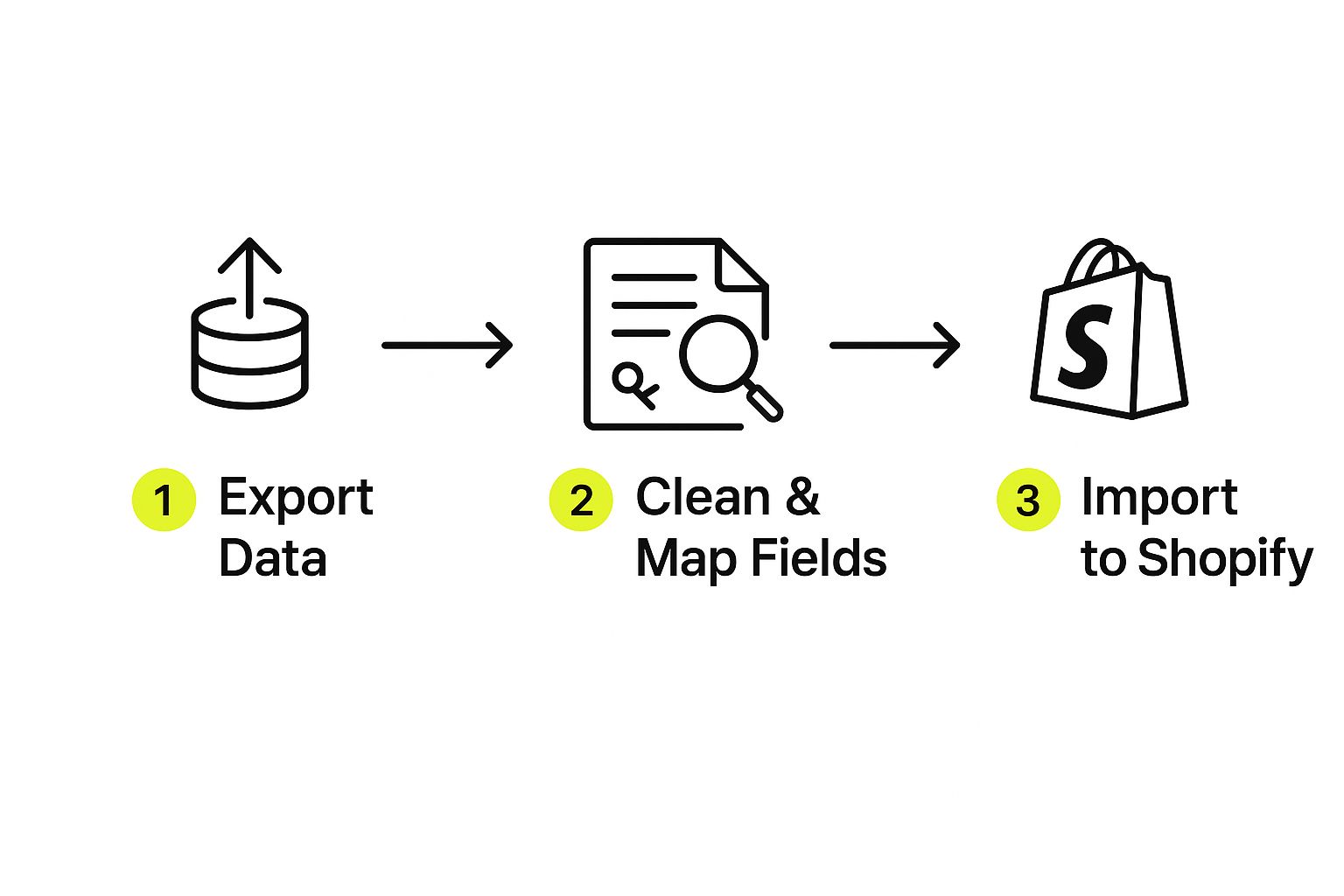
You’ll export your products and customers from WooCommerce and open those files in a spreadsheet program like Google Sheets or Excel. This is where the real work starts. You have to meticulously edit the column headers in your file to match Shopify's specific format.
For instance, a WooCommerce column named "Regular price" needs to be changed to "Variant Price". The "Stock" column has to become "Variant Inventory Qty". One wrong move here, and the import will either fail or, even worse, your data will get scrambled.
The manual method gives you absolute control, but it also gives you absolute responsibility. It’s best for people who are comfortable in a spreadsheet and have the patience to check, double-check, and triple-check their work.
A quick pro tip: import your data in the right sequence. Always start with your products, then your customers. This way, when you import orders later (which usually requires an app anyway), they can link up properly to the right customer and product profiles. For a deeper dive into the specifics, check out this comprehensive guide on how to migrate from WooCommerce to Shopify.
Hiring a Shopify Expert
What if your store is huge, has years of complex order data, or you just don't have the time or technical confidence for any of this? That's when you call in a Shopify Expert. These are agencies and freelancers who have been vetted by Shopify and live and breathe this stuff.
Hiring an expert is the most hands-off, worry-free option. They'll manage the entire process—data export, cleaning, mapping, importing, and testing. They also handle the critical details that apps and manual imports often miss, like properly setting up 301 redirects to preserve your hard-earned SEO rankings.
While it’s the most expensive route, it’s a smart investment for established businesses. The cost of an expert is almost always less than the cost of lost sales from a botched migration.
Setting Up Your New Shopify Store for Success

Getting your data moved over to Shopify is a huge step, but honestly, that’s where the real fun begins. Now you get to turn that raw data into a polished, high-converting storefront that’s ready to wow your customers from the moment they land on your site.
This setup phase is absolutely crucial. You’ll be picking a theme that actually feels like your brand, rebuilding your app stack, and getting all the nitty-gritty backend settings dialed in. I like to think of it as moving into a new house—the boxes are inside, but now you have to arrange the furniture, hang the art, and make sure the lights work.
Choosing and Customizing Your Theme
Your theme is your digital handshake, and that first impression is everything. After you migrate WooCommerce to Shopify, you have this fantastic opportunity to either meticulously recreate your old look or just go for something completely fresh and modern.
Shopify’s Theme Store is packed with great free and paid options, and the best part is they’re all built to be mobile-friendly and fast. When you’re browsing, try to look past the pretty pictures and think about the actual user experience.
- Navigation: Is it easy to imagine your product categories fitting into the menu? Is it intuitive?
- Product Pages: Does the layout really let your products shine? Think big images and clear, unmissable "add to cart" buttons.
- Brand Alignment: Does the theme's vibe feel like a solid starting point for your brand? You can change colors and fonts, but the core structure should feel right.
Once you’ve found "the one," the Shopify theme editor is your new best friend. It’s a drag-and-drop tool that’s surprisingly powerful, letting you tweak everything from color palettes to the entire homepage layout without touching a line of code.
My two cents: Your theme isn't just about aesthetics; it's the foundation of your customer's journey. Go for something clean, quick, and designed to make finding and buying products ridiculously easy.
Building Your New App Ecosystem
One of the biggest mental shifts from WooCommerce is saying goodbye to your folder of plugins. The Shopify App Store is where you'll find the equivalent tools, and your goal is to replicate your old store's core functionality while maybe grabbing some cool new toys.
Pull out that plugin audit you did before the migration. What were the absolute must-haves? Here’s a quick cheat sheet for finding their Shopify counterparts:
- For SEO: If you loved Yoast, you'll feel right at home with apps like Plug in SEO or SEO Manager. They’ll help you dial in your meta tags and keep an eye out for any technical issues.
- For Customer Reviews: Ditch the basic WooCommerce reviews and level up with an app like Judge.me or Loox. These make it simple to gather and showcase powerful social proof, including customer photos.
- For Email Marketing: This is a huge upgrade. You can integrate directly with powerhouses like Klaviyo or Omnisend for slick email automations that were often a headache to get working smoothly in WooCommerce.
This is also the perfect time to add features you’ve been dreaming about. Maybe it's a loyalty program, a smarter search bar, or even a subscription model to build recurring revenue. If subscriptions are on your radar, you need to set them up right from the start. For a deep dive, check out this Ultimate Guide to Mastering Subscription with Shopify.
Configuring Your Core Store Settings
With your design and apps locked in, it’s time to flip the switches on the operational side of your business. These are the settings that ensure you can actually take orders and get paid. You’ll find everything you need under "Settings" in your Shopify admin.
First on the list: payment gateways. Shopify Payments is a no-brainer. It lets you take all major credit cards right out of the box with no extra transaction fees. I also recommend adding other options like PayPal or even a "buy now, pay later" service like Affirm to give your customers choices.
Next up is shipping, which can feel complicated, but Shopify breaks it down nicely.
- Set Up Shipping Zones: First, tell Shopify where in the world you're willing to ship. You can create zones for your country, continent, or the whole world.
- Add Shipping Rates: Now, create the rules for each zone. You can do flat rates, offer that all-important free shipping on orders over a certain amount, or even pull in real-time calculated rates from carriers like USPS and DHL.
Finally, double-check your tax settings. Shopify does a good job of automating tax collection, but you still need to make sure the configuration is correct based on where your business operates. Once that’s all set, you’re ready to point your domain to the new store and get ready for the big reveal.
Protecting Your SEO and Launching with Confidence

You've done the heavy lifting—the data is moved, the theme is beautiful. Now comes the part that keeps most store owners up at night: going live without tanking your search rankings. It’s a completely valid fear, but a successful launch isn't about crossing your fingers and hoping for the best. It’s about having a solid plan.
Think of it this way: a well-planned move from WooCommerce to Shopify can be a massive upgrade for your SEO. We've seen it happen. One company, LaEnviro, saw their site load 70% faster after migrating. This resulted in a 150% boost in SEO efficiency and a staggering 200% growth in sales in just three months. This isn't just a platform switch; it's a performance opportunity.
Mastering 301 Redirects
If there's one thing you absolutely cannot skip, it's setting up your 301 redirects. This is non-negotiable. A 301 redirect is simply a permanent "we've moved" sign for search engines. It tells Google that an old WooCommerce URL now lives at a new Shopify URL.
Without them, anyone clicking an old link from a search result, a blog, or social media will land on a "404 Not Found" page. That’s a dead end for customers and a massive red flag for Google.
Your first move is to map out every single URL from your old site. Grab a crawling tool like Screaming Frog and generate a complete list of your product pages, categories, blog posts—everything. This list is your blueprint for creating the redirects inside Shopify.
A 301 redirect isn't just a technical task; it's an act of preserving the trust and authority you've built with search engines over the years. Skipping this step is like changing your business address without telling the post office—you're going to lose a lot of valuable traffic.
Verifying and Submitting Your New Sitemap
Once your redirects are ready, your next job is to hand Google an updated map of your new store. This map is your sitemap, an XML file that lists all the important pages on your Shopify site. It helps search engine crawlers find and index your content much more efficiently.
Head straight to Google Search Console and submit your new sitemap. This is the official signal to Google that your site has changed and is ready for a fresh crawl.
After you submit it, keep a close eye on the "Coverage" report in Search Console. It will tell you if any 404 errors or other indexing problems pop up, allowing you to fix them quickly. As you're working to protect your rankings, remember that the fundamentals are key. It's a great time to refresh your knowledge on how to build a keyword list for SEO success.
Your Final Launch Checklist
A confident launch comes from being thorough. Before you flip the switch and announce your new site to the world, run through one final check to make sure the entire customer experience is seamless.
- Test the Full Checkout Process: Don't just add an item to the cart. Place several real test orders using different payment methods to ensure the whole funnel works perfectly.
- Verify All Key Pages: Click every link in your main navigation and footer. Do all product pages, collections, and informational pages like your "About Us" and "Contact" load correctly?
- Check on Mobile Devices: This is huge. Grab your phone and a tablet and navigate your store. Is it fast? Is it easy to use? With more than half of traffic coming from mobile, this experience has to be flawless.
- Confirm App Functionality: Are your apps for reviews, email pop-ups, and live chat working as they should? Double-check that all your critical integrations are active and configured properly.
Following these steps will not only preserve your hard-earned SEO but will also create a fantastic experience for your customers right from the start. For a deeper dive into these final steps, our guide on how to https://scaleshopify.com/2025/06/06/convert-woocommerce-to-shopify/ has you covered.
Common Questions About Moving to Shopify
Even with the best plan, you're bound to have a few questions pop up. It's only natural. Let's walk through some of the most common concerns we hear from folks moving from WooCommerce to Shopify.
How Long Does This Whole Thing Actually Take?
Honestly, there's no one-size-fits-all answer. The timeline really hinges on how big and complex your current store is.
If you're running a smaller shop with a couple hundred products and not a ton of order history, you could knock out the entire move in a weekend, especially if you use a migration app.
But for a larger store with thousands of products, years of customer data, and a deep order history, it's a different story. A realistic timeframe—from planning and data transfer to theme setup and testing—is usually somewhere between one and four weeks. The single best thing you can do to keep things on track is to invest plenty of time in planning upfront. Trust me, it prevents a world of headaches later.
Will My Customer Passwords Come Over?
Nope, they won't. This is a non-negotiable security standard across all platforms. Passwords are encrypted for a reason, and trying to move them would be a massive security breach for you and your customers.
Once you go live on Shopify, you’ll just need to invite your existing customers to create a new password. It's a straightforward process, and Shopify apps like Bulk Account Inviter can make it a breeze. You can send out professional, branded invitations in just a few clicks.
Can I Bring My WordPress Blog Posts with Me?
Yes, absolutely! Since WooCommerce runs on WordPress, your blog is a huge part of your site, and bringing it over to Shopify is a standard part of the process.
Most migration tools and services will transfer your WordPress blog posts, pages, and all the important SEO data (like titles and descriptions) to Shopify’s native blog. The real trick here is setting up 301 redirects for every single blog post URL. This is critical for preserving your hard-earned search engine rankings.
The biggest mistake you can make is skipping the 301 redirects. If you don't do this, all your old links will hit a '404 Not Found' page, and your search rankings can tank almost overnight. Mapping every old URL to its new one is the most important thing you can do to protect your traffic.
At E-commerce Dev Group, we live and breathe this stuff. Our whole focus is making your switch from WooCommerce to Shopify as smooth as possible. Our team handles all the nitty-gritty details, from migrating every last bit of data to making sure your SEO is rock-solid, so your business never skips a beat. Let us handle the technical side so you can get back to growing your brand. Learn more about our Shopify migration services.
