


If you want a faster site, you need to hit three key areas right away: shrink your images, clean up your code by minifying CSS and JavaScript, and use browser caching so visitors don't have to re-download everything. Getting these right is the bedrock of a speedy store and a fantastic user experience.
Why Page Load Speed Is a Game Changer
Before we get into the nitty-gritty, let's be clear on why a fast website is non-negotiable. A slow page isn't just a small annoyance; it's a massive roadblock standing between you and your business goals. Every millisecond really does count, and those delays directly hurt your sales and search engine rankings.
Think of it this way: a slow site bleeds conversions. Study after study shows a crystal-clear link between how long a page takes to load and what a user does next. For example, just a one-second delay can slash e-commerce conversions by a staggering 8.4%. That's real money walking out the door because your page didn't show up quickly enough.
Understanding Google's Core Web Vitals
To really master page speed, you have to know what Google is looking for. The search engine uses a specific set of metrics called Core Web Vitals to measure the actual experience a person has on your site. These aren't just technical jargon; they reflect how a real visitor perceives your store's performance.
Let's break them down simply:
- Largest Contentful Paint (LCP): This is all about loading performance. It measures how long it takes for the biggest thing on the screen—usually a hero image or a large text block—to appear. A good LCP score is under 2.5 seconds.
- Interaction to Next Paint (INP): This one's about responsiveness. It tracks the time between a user's click or tap and the moment the page visually responds. It answers the question: does this site feel fast or sluggish?
- Cumulative Layout Shift (CLS): This measures visual stability. We've all been there: you go to click a button, and an ad loads, pushing everything down the page. That frustrating jump is a layout shift, and CLS quantifies how much of that is happening.
"The competitive gap will widen between brands that provide great user experience and those who don’t."
Improving these metrics isn't just about chasing a better SEO score. It’s about creating a smooth, frustration-free experience that keeps people on your site longer, encourages them to explore, and ultimately convinces them to buy. For a deep dive into practical strategies, resources like this guide on How to Improve Website Loading Speed Fast are incredibly valuable.
Finding the Bottlenecks in Your Website
Before you can fix a slow website, you have to play detective. That gut feeling of "my site is slow" is just a symptom. To find the cure, you need a precise diagnosis. This means digging into the data to pinpoint exactly what’s causing the delays and turning a vague problem into a clear, actionable to-do list.
The good news? You don't need a huge budget for this. Powerful and free tools like Google PageSpeed Insights and GTmetrix can give you everything you need to get started. These tools do a lot more than just hand out a letter grade; they provide a detailed breakdown of every single element loading on your page, showing you precisely where the holdups are.
Decoding Your Performance Report
When you first run a test, you'll see an overall performance score. It’s a decent starting point, but the real gold is buried in the details. You’ll find specific metrics that tell a story about the user experience, like how long it takes for the first visual to appear or when someone can actually click on something.
If you really want to get into the weeds of what these numbers mean, our guide on how to test website performance is a great place to start: https://scaleshopify.com/2025/08/06/how-to-test-website-performance/
The key is to look past the top-line score and head straight for the "Opportunities" or "Recommendations" section. Think of it as your personalized, prioritized checklist for getting faster.
The infographic below really drives home how even small delays can sabotage the user journey and, ultimately, your sales.
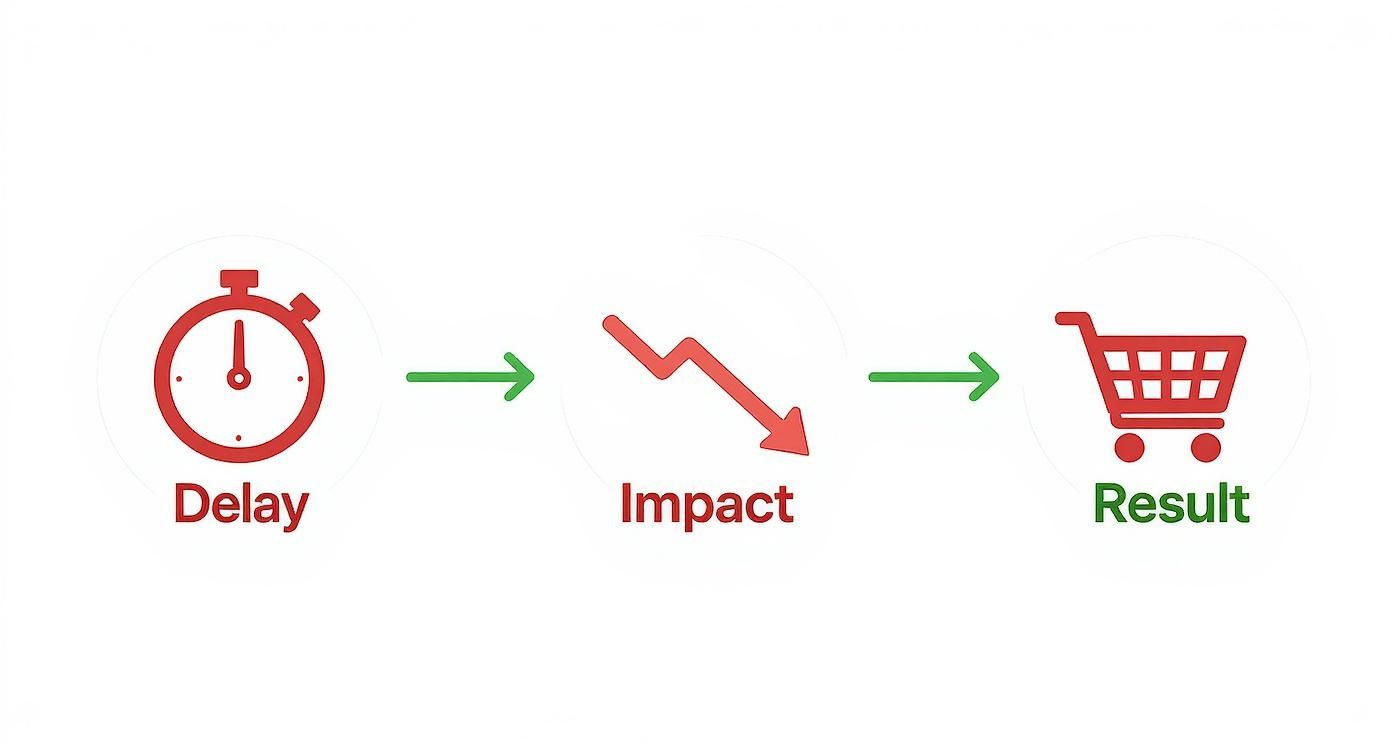
As you can see, every millisecond counts. A sluggish experience directly hurts user engagement, which means lost revenue.
Understanding Core Web Vitals
To really get a handle on user experience, you need to understand Google's Core Web Vitals. These are the key metrics Google uses to measure a page's real-world performance, and they directly impact your SEO rankings.
Here’s a quick reference table to see where your site stands. Your goal is to be in the "Good" column for all three.
Core Web Vitals Performance Benchmarks
| Metric | Good | Needs Improvement | Poor |
|---|---|---|---|
| Largest Contentful Paint (LCP) | ≤ 2.5 seconds | > 2.5s and ≤ 4.0s | > 4.0 seconds |
| First Input Delay (FID) | ≤ 100 milliseconds | > 100ms and ≤ 300ms | > 300 milliseconds |
| Cumulative Layout Shift (CLS) | ≤ 0.1 | > 0.1 and ≤ 0.25 | > 0.25 |
Getting these three metrics into the green is one of the most important technical SEO tasks you can tackle.
Identifying Common Speed Culprits
After running a few tests, you'll start to notice the same culprits popping up again and again. Learning to spot these common offenders helps you find the low-hanging fruit—the fixes that deliver the biggest performance boost for the least amount of effort.
Keep an eye out for these frequent offenders in your reports:
- Bloated Images: High-resolution images are often the single heaviest part of a webpage. If your report screams "Properly size images" or "Serve images in next-gen formats," you've found a major bottleneck.
- Render-Blocking JavaScript & CSS: These are files that your browser tries to load at the very top of the page, forcing everything else to wait. It's like a one-lane road during rush hour; nothing else can get through until they're done.
- Slow Server Response Time (TTFB): Also known as Time to First Byte, this is how long your browser has to wait for the server to even start sending information. A high TTFB usually points to an issue with your hosting plan or a server bogged down by too many apps.
- Excessive Third-Party Scripts: Every analytics tool, chat widget, or marketing pixel adds an external script to your site. Each one is another network request that can slow things down, and they can add up fast.
Don't just chase a perfect score. Focus on the specific recommendations that address the largest delays first. Fixing a single render-blocking script can have a much bigger impact than a dozen minor tweaks.
For a deeper technical dive into troubleshooting, this guide on application performance optimization covers advanced profiling and tuning techniques. By methodically working through these diagnostics, you're not just guessing—you're creating a data-driven plan to make a real difference in your page speed.
Optimizing Images Without Losing Quality
Images are the heart and soul of a great-looking store, but they're often the single heaviest thing on the page. I've seen it time and time again: huge, unoptimized media files are the number one culprit behind slow load times, and that directly hurts your user experience and your sales.
Getting your images right is one of the quickest wins you can get for page speed.
The goal isn't to get rid of your beautiful product shots. It's about being smart with how you deliver them. This means shrinking the file size as much as possible without turning your crisp photos into a blurry, pixelated mess. It’s a delicate dance between performance and aesthetics, but it’s one you can definitely master.

Choosing the Right Image Format
Before you even think about compression, you need to start with the right file type. Using the wrong format is like trying to hammer a nail with a screwdriver—you might get it done, but it’s not going to be pretty. Each format has its own job.
- JPEG (or JPG): This is your workhorse for most photographs and images with lots of colors and gradients. It uses "lossy" compression, which means it cleverly discards a tiny bit of data to make the file size smaller, and it does a fantastic job of it.
- PNG: Reach for a PNG when you need a transparent background, like for your company logo or a specific icon. It uses "lossless" compression, which keeps every pixel perfect but often results in a larger file than a JPEG.
- WebP: Developed by Google, this modern format is a total game-changer. It can handle both lossy and lossless compression, supports transparency, and can create files that are 25-34% smaller than a similar JPEG without any noticeable drop in quality. It's a huge win.
- AVIF: This is the new kid on the block, and it offers even better compression than WebP. It's an amazing choice for delivering tiny, high-quality images, though you'll want to keep an eye on browser support as it's still becoming universal.
For years, the standard has been JPEG for photos and PNG for graphics. But today, the smart move is to serve modern formats like WebP or AVIF whenever a visitor's browser can handle them.
Smart Compression and Resizing
Once you've got the right format, it’s time to compress. This process intelligently trims the fat from your image files. You've got plenty of tools at your disposal, from desktop apps like ImageOptim to easy web-based services like TinyPNG.
It's also absolutely critical to resize your images before you upload them. If your product image container is only 800px wide, don't upload a massive 4000px photo straight from your camera. That just forces the visitor to download a giant file that their browser has to shrink anyway. Resize it first, then compress it.
One of the most impactful ways to improve page load speed is through image optimization. Compressing images and text can save substantial bandwidth; studies show 25% of web pages could save more than 250KB, and 10% could save over 1MB. Given that images are often the largest part of a page’s total size, these savings are critical for improving user experience.
Implementing Responsive Images with Srcset
Think about it: serving the same huge image to someone on a 27-inch monitor and someone on a little smartphone screen is a massive waste of data for the mobile user. That’s where responsive images save the day.
By using the srcset attribute in your HTML, you can give the browser a menu of different-sized versions of the same image. The browser then picks the most appropriate one based on the user's screen size and resolution. It’s pretty clever.
Here’s what that looks like in practice:
This basically tells the browser, "I've got a few options here. Pick the one that makes the most sense." It's a non-negotiable technique for a fast mobile experience.
The Power of Lazy Loading
Why should a visitor have to download every single image on a long collection page the moment they land on it? Many of those images are way down at the bottom, and the user might never even scroll that far. This is exactly what lazy loading was invented for.
Lazy loading is a simple trick that tells the browser not to load off-screen images until the user actually scrolls close to them. This makes a huge difference in the initial page load time and saves bandwidth for everyone. The page feels faster because the browser can focus on rendering the content the user can see right away.
To dive deeper into these techniques, check out our comprehensive guide: https://scaleshopify.com/2025/01/14/ultimate-guide-to-media-file-optimization-for-shopify-migration/
By combining the right formats, smart compression, responsive images, and lazy loading, you can slash your page weight and see a dramatic boost in speed—all without sacrificing the beautiful visuals that make your store unique.
Tidying Up Your Website's Code and Scripts
After you've optimized your images, the next big performance hog is usually the code itself. Think of bloated HTML, messy CSS, and a traffic jam of JavaScript files all trying to load at once. This forces a visitor's browser to work overtime just to piece the page together, creating frustrating delays.
Your website’s code is essentially a recipe for the browser. The cleaner and more direct that recipe is, the faster the browser can cook it up. Getting your code in order is a foundational step for a much quicker user experience.
Minify Your Code for a Lighter Load
When developers write code, they add spaces, comments, and line breaks to keep it organized and readable for other humans. That’s great for them, but browsers don’t need any of it. Every single one of those extra characters adds to the file size, and every byte has to be downloaded.
This is where minification saves the day. It's a process that automatically strips out all the unnecessary fluff from your code files (HTML, CSS, and JavaScript) without breaking them. The result is a much smaller, leaner file that zips across the network much faster.
- CSS Minification: Removes comments and extra spaces from your stylesheets.
- JavaScript Minification: Does the same for script files, and can even shorten variable names.
- HTML Minification: Tidies up the core structure of your pages.
Many modern Shopify themes and performance apps take care of this for you, but it never hurts to check. A minified file looks like a solid, unreadable block of text—and that’s a good thing. It means it's as small as it can possibly be.
Think of minification as vacuum-sealing your code. You're packing the same instructions into a much smaller, more efficient package. It’s an easy win that cuts down your page weight and gets content in front of customers faster.
Defer Scripts to Prioritize What Matters Most
Let's be honest: not every script on your site needs to load the second someone lands on the page. Things like live chat widgets, analytics trackers, or fancy animations that are way down the page can wait. When these non-essential scripts load first, they create a bottleneck, blocking the most important content from appearing.
This is what we call a render-blocking resource. The browser literally stops everything it's doing to download and run that script, leaving your visitor staring at a blank or half-finished screen.
The fix is to defer non-critical JavaScript. By adding a simple defer attribute to the script tag, you’re telling the browser, "Go ahead and download this file, but don't run it until you've finished building the main page." This lets crucial content like text and product images show up first, which makes the page feel much faster.
It’s like unloading groceries. You bring in the milk and eggs right away. The giant pack of paper towels for the pantry can wait until everything else is put away.
Auditing Your Third-Party Scripts
Every app you install—from marketing pixels to review widgets—adds its own script to your store. While these tools are often valuable, they also introduce external code that can seriously slow you down. Each one is another network request to a server you don't control, and you’re at the mercy of its speed.
I’ve seen a single slow script from a third-party service hold an entire page hostage. That's why a regular audit of these scripts is non-negotiable.
Here’s a practical way to tackle it:
- Make a List: Use your browser's developer tools (the "Network" tab is your friend) or a tool like GTmetrix to see every single external request your page is making.
- Justify Its Existence: Look at each script and ask a tough question: Is the benefit this app provides worth the performance hit? Are customers really using it?
- Measure the Impact: This is the fun part. Temporarily disable scripts one by one and re-run your speed tests. You might be shocked to discover your new pop-up app is adding 2 full seconds to your load time.
- Trim the Fat: If a tool isn’t pulling its weight, get rid of it. See if you can consolidate, too. Could one marketing tool do the job of three separate ones you have installed?
This isn't a one-and-done task. I recommend doing this every quarter to keep your site lean. By being ruthless about the code you allow on your store, you take back control of your site’s performance and create a faster, more reliable experience for every single visitor.
Use Caching and CDNs to Deliver Content Instantly

Once your code is clean and your images are optimized, the next major performance win comes from rethinking how your content gets to your visitors. Caching and Content Delivery Networks (CDNs) are the one-two punch that makes your site feel blazing fast, no matter where your customers are.
These two strategies aren't about making your site smaller; they're about making it smarter. They work by storing copies of your site's files—images, stylesheets (CSS), and scripts—in locations that are physically closer and quicker for a user's browser to grab.
Let the Browser Do the Heavy Lifting with Caching
Think about a customer who returns to your store. Without caching, their browser has to download your logo, product photos, and all the style files all over again, just like their very first visit. That's a huge, unnecessary drain on their time and data.
Browser caching fixes this. It basically tells the visitor's browser, "Hey, save a copy of these files on your computer." When they come back to your site, their browser just pulls those files from its local memory instead of re-downloading them from your server.
The result? A nearly instant load for returning visitors. This creates a smooth, professional experience that keeps people engaged. Most modern themes and Shopify itself handle a lot of this automatically, but it's good to understand the magic happening behind the scenes.
Go Global with a Content Delivery Network (CDN)
While browser caching is a game-changer for repeat visitors, a Content Delivery Network (CDN) gives a speed boost to everyone, especially first-time visitors from around the world.
Here's the problem a CDN solves: If your Shopify store's main server is in Virginia, a customer from London has to wait for all your site's data to travel across the Atlantic. That physical distance, known as latency, adds real, noticeable seconds to your page load time.
A CDN eliminates this delay by storing copies of your site's assets (like images and scripts) on a massive network of servers distributed globally. When that customer in London visits your site, the CDN serves them content from a local server in Europe, not all the way from Virginia. By drastically cutting the travel distance, a CDN makes a huge difference for your international audience.
Pro Tip: For any serious e-commerce store, a CDN isn't just a "nice to have"—it's a must. Beyond pure speed, it improves security and takes a ton of pressure off your main server, which helps prevent crashes during big sales or traffic spikes. To learn more, check out our Shopify CDN setup guide for a detailed walkthrough.
Get Ahead of the Click with Prefetching
Prefetching is a seriously clever trick that tries to predict what a user will do next. It then starts loading the resources for that next page in the background, before they even click. Think of it as a helpful clerk getting the next item ready before you even ask.
For example, if a user hovers their mouse over a link to one of your product pages, the browser can start prefetching that page's core files. When they finally do click, the page seems to load instantly because much of the work was already completed.
This technique is particularly effective for mobile users. Studies have shown that mobile pages take, on average, 71% longer to load than their desktop versions. Prefetching is a powerful tool to close that gap. In fact, when Facebook rolled out link prefetching in its mobile app, it saw page load times improve by as much as 25%. You can find more stats like this over at BloggingWizard.com.
By layering these strategies—browser caching for loyal customers, a CDN for global reach, and prefetching for a fluid user journey—you build a delivery system that makes your website feel incredibly responsive to every single visitor.
Common Questions About Page Load Speed
As you start tweaking your site, you're going to bump into some common questions. I've heard them all over the years, from merchants trying to figure out where to start to those wondering if their hosting plan is secretly sabotaging their efforts. Let's clear up some of the most frequent sticking points.
Getting these final pieces right is the key to maintaining a fast site for the long haul, not just treating it as a one-time project.
Should I Focus on Desktop or Mobile Speed First?
This one's a classic, but the answer is surprisingly simple: start with mobile. I know it's tempting to perfect the experience on your big office monitor, but the hard truth is that most of your traffic—and your sales—are happening on a smartphone.
Mobile devices are a different beast entirely:
- They’re often on shaky cellular networks, not stable Wi-Fi.
- They have far less processing power than a laptop or desktop.
- On a small screen, every single millisecond of waiting feels like an eternity.
A site that feels "fast enough" on your desktop can be painfully slow on a phone because of these limitations. Plus, Google uses mobile-first indexing, meaning it primarily judges your mobile site to decide your search rankings. If you optimize for the toughest environment first (mobile), your desktop users will get a blazing-fast experience by default.
How Much Does My Web Hosting Really Matter?
It matters—a lot. Think of your web hosting as the engine in your car. You can have the slickest, most aerodynamic design, but if the engine is sputtering, you're not going anywhere fast.
That cheap, shared hosting plan might seem like a bargain, but you're splitting server resources with hundreds of other websites. If one of your "neighbors" gets a massive traffic spike, your site can slow to a crawl. A sluggish Time to First Byte (TTFB) is the classic giveaway of an overworked server.
Investing in quality hosting is one of the most direct ways to slash your TTFB and make your entire site more responsive. For any serious e-commerce business, this is not the place to cut corners.
A solid hosting environment gives you a stable foundation to build on. All your other speed optimizations will be far more effective.
Will Using a Page Builder Slow Down My Site?
Page builders are fantastic for design flexibility, but yes, they can come with a performance cost if you're not careful. To make that drag-and-drop magic happen, they often add extra code, more stylesheets, and additional scripts. This "code bloat" can increase the number of things a browser has to download and process, weighing down the page.
But that doesn't mean you should ditch them. Modern page builders are much more performance-aware than they used to be.
To keep your site zippy while using a builder, stick to a few best practices:
- Pick a lightweight builder known for its clean code.
- Go easy on the widgets. Every animated element, slider, and pop-up you add contributes to the load time. Be selective.
- Audit your pages regularly. After adding a new section, run it through PageSpeed Insights to see what impact it had.
The key is to strike a balance. Use the power of a page builder to create stunning designs, but always keep an eye on the performance trade-offs.
How Often Should I Check My Page Speed?
Page speed is not a "set it and forget it" task. Your website is a living, breathing thing. You’re constantly adding new products, installing apps, and updating content. Any of these changes can unknowingly drag your performance down.
I recommend getting into a regular rhythm for performance checks. A great starting point is to run a full audit once a month. It's also smart to do a quick check after any significant change, like:
- Installing a new third-party app.
- Making major edits to your theme's code.
- Uploading a big batch of new product photos.
This proactive habit helps you catch small speed regressions before they snowball into major problems that kill your user experience and tank your sales.
Ready to turn your slow site into a high-converting machine? The team at E-commerce Dev Group specializes in performance optimization, turning sluggish stores into lightning-fast industry leaders. Let us help you speed up your site and boost your revenue today.
