

Have you ever stared at a folder full of files named Final_Draft_v2.docx, Final_Draft_v3_really_final.docx, and felt a creeping sense of dread? We’ve all been there. At its core, version control is the professional’s answer to that exact problem. It’s a safety net that meticulously tracks every single change you make to a project over time.
For developers, Git is the world's go-to tool for this job. It lets them manage incredibly complex code with total confidence.

What Is Version Control, Really? The Power of Git
Think about writing a book with a team. Without a system, you'd be emailing chapters back and forth, hoping you don't accidentally save over someone else's brilliant paragraph. It's a recipe for disaster. Someone inevitably ends up working on an old draft, progress gets lost, and frustration boils over.
This nightmare scenario is exactly what version control systems (VCS) were built to solve. A VCS is like a project's personal historian, recording every modification to your files. It allows you to travel back in time to recall specific versions, compare changes, and collaborate without chaos.
Git: The Modern Standard
Git is a special kind of VCS called a distributed version control system. It was created back in 2005 by Linus Torvalds—the same person who created the Linux operating system.
Unlike older systems that stored the entire project history on one central server, Git gives every single developer a complete, local copy of the project's history. This simple but brilliant idea makes it lightning-fast and incredibly flexible. Today, its adoption is overwhelming; around 93% of developers worldwide use Git, making it the undisputed king of version control.
A version control system is like a time machine for your project. It gives you the power to rewind to a previous state, see exactly what changed, and understand the story of how your project evolved.
Why Does This Matter for Development?
Using Git brings sanity and safety to any project, whether you're working alone or with a huge team. It gives you superpowers to:
- Experiment Fearlessly: You can create isolated "branches" to try out new features without touching the stable, main project. If it doesn't work, just delete the branch. No harm done.
- Collaborate Effectively: Git makes it simple to merge changes from multiple people, preventing you from stepping on each other's toes.
- Maintain a Clear History: Every change is logged with a message explaining why it was made, which makes tracking down bugs a whole lot easier.
- Recover from Mistakes: Accidentally delete something important? With Git, you can instantly turn back the clock and restore any part of your project to a previous state.
Managing Projects With and Without Git
To really grasp the difference, let’s compare a typical project workflow with and without a proper version control system.
| Scenario | Without Version Control (Manual Tracking) | With Version Control (Using Git) |
|---|---|---|
| Saving Changes | Creates messy files: project_v1.zip, project_final.zip. |
A clean, single commit creates a permanent snapshot in history. |
| Collaboration | Emailing files back and forth, risking overwritten work. | Developers push and pull changes from a shared repository. |
| Fixing Mistakes | Manually undoing changes, hoping you remember everything. | Instantly revert to any previous stable version with one command. |
| Trying New Ideas | Duplicating the entire project folder to avoid breaking things. | Create a lightweight branch to work in isolation. |
| Understanding History | No clear record of who changed what, when, or why. | git log provides a detailed, searchable history of every change. |
It's clear that even for simple projects, Git introduces a level of organization and safety that manual methods just can't match.
While Git handles your code, the principle of versioning extends to other areas, too. For instance, understanding API versioning best practices is crucial for keeping the services your application relies on stable and predictable as they change over time.
How Git Actually Thinks About Your Project
To really get what version control with Git is all about, you need to shift your perspective. Most systems think about changes as a list of edits—what was added here, what was deleted there. Git, however, takes a completely different and far more powerful approach.
Instead of just tracking individual edits, Git thinks in snapshots. Every time you save your work with a commit, Git takes a picture of what every single file in your project looks like at that moment. It then stores a reference to that complete snapshot.
This is what makes it so fast. If a file hasn't changed since the last snapshot, Git doesn't waste space by storing it again. It just creates a link to the previous, identical version it already has on file. You can think of it as a detailed photo album for your project, where every picture is a complete, working version you can jump back to at any time.
The Three States of a Git File
Now, let's break down the workflow. Every file in your project is always in one of three main states. Understanding this three-step dance is the secret to mastering Git’s commands and logic. It’s how your work moves from a simple local edit to a permanent part of the project's history.
- Modified: This is your "work in progress" stage. You've opened a file and made some changes, but you haven't told Git about them yet. At this point, the file is considered modified.
- Staged: This is the "on-deck" circle. Once you’re happy with a change, you select it to be included in your next snapshot. This is called staging, and it moves the file to the staging area. Think of it as posing everyone for a group photo before you actually click the shutter.
- Committed: This is the final, saved record. When you commit, Git takes everything from the staging area and permanently stores that snapshot in your repository. The picture is taken, and it’s now officially part of your project's history, complete with a message describing what changed.
That staging area is a game-changer. It gives you the power to craft your commits with precision. For example, say you fixed a small bug and also started working on a big new feature. The staging area lets you create two separate, clean commits—one just for the bug fix, and another for the new feature—which makes your project history incredibly easy to follow later on.
Visualizing the Git Ecosystem
This whole process can be a little abstract, so here’s a map that shows how your local files, the project's history, and any remote servers all fit together.
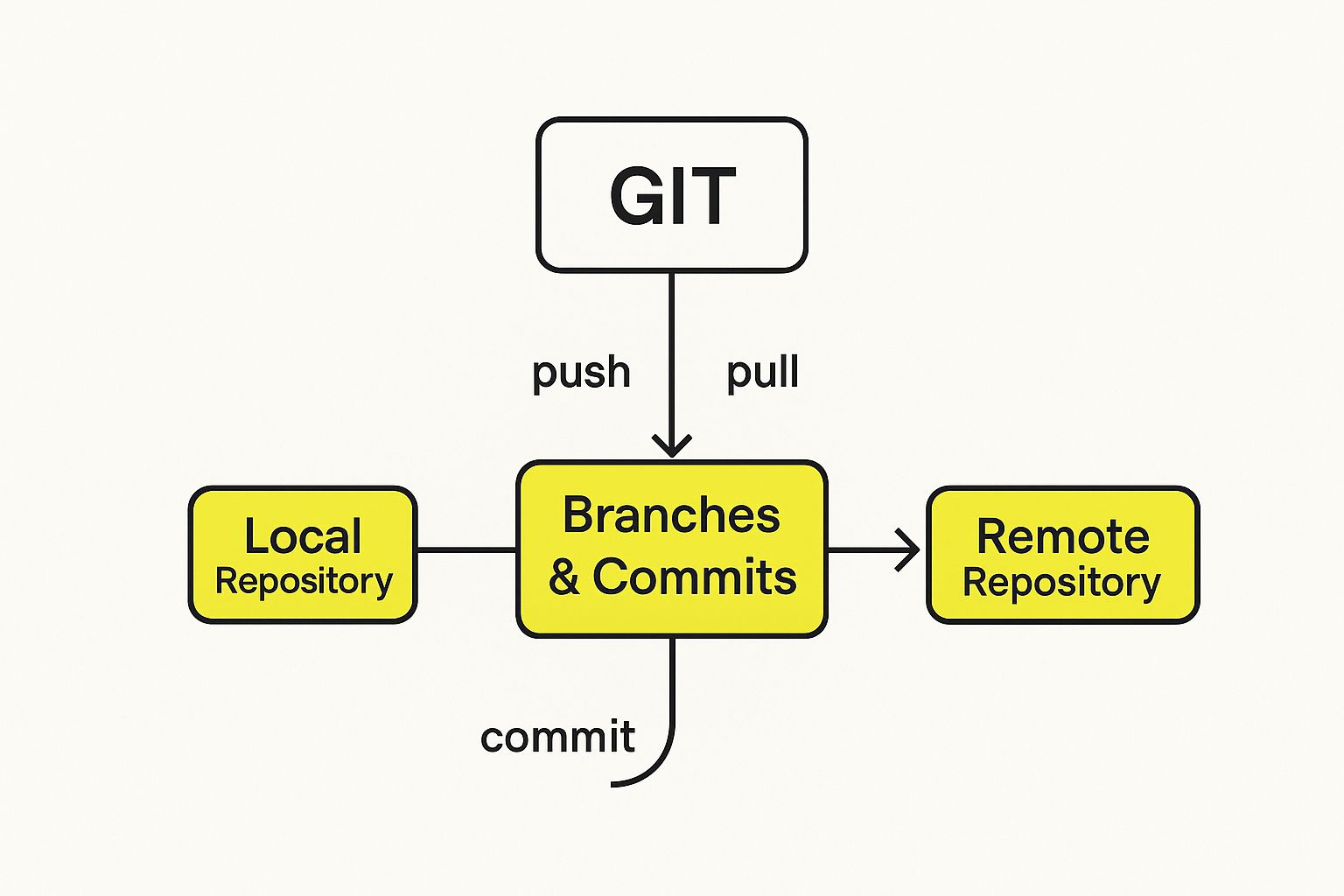
As you can see, the real work happens on your local machine. You build up commits on different branches, and then you use push and pull commands to sync everything up with a remote server like GitHub or GitLab.
Core Components of a Git Project
Understanding the three states helps make sense of the main working parts of any Git project. These pieces all work together to give you the safety net and organization that makes Git so indispensable.
- Working Directory: This is just your project folder. It’s the live version of the files you can see and edit on your computer.
- Staging Area (or Index): This is basically a holding area. It’s a simple file inside your Git directory that keeps track of what you’ve decided will go into your very next commit.
- Git Repository (.git directory): This is the heart of your project. It's a hidden folder where Git stores every snapshot and all the historical data. When you make a commit, your staged changes get saved right here.
This separation is incredibly useful, especially for complex e-commerce projects. Imagine you’re building Shopify themes; you might be fixing a tiny CSS bug while also experimenting with a brand new Liquid template. The staging area lets you commit only the bug fix, keeping your unfinished template code out of the project's official history until it’s ready. This keeps everything clean, logical, and easy to manage.
Using Git’s Superpower: Branching and Merging
If you had to pick one feature that truly defines Git, it would have to be branching. Think of your project’s history as a single, straight road. Every change you save—every commit—is another step along that road. Branching lets you create a new, parallel path that veers off from the main one.
This new path, or branch, is your own private sandbox. Here, you can build out a new feature, experiment with a wild idea, or track down a tricky bug, all without disturbing the stable, working version of your project on the main road. It’s the ultimate safety net for development.
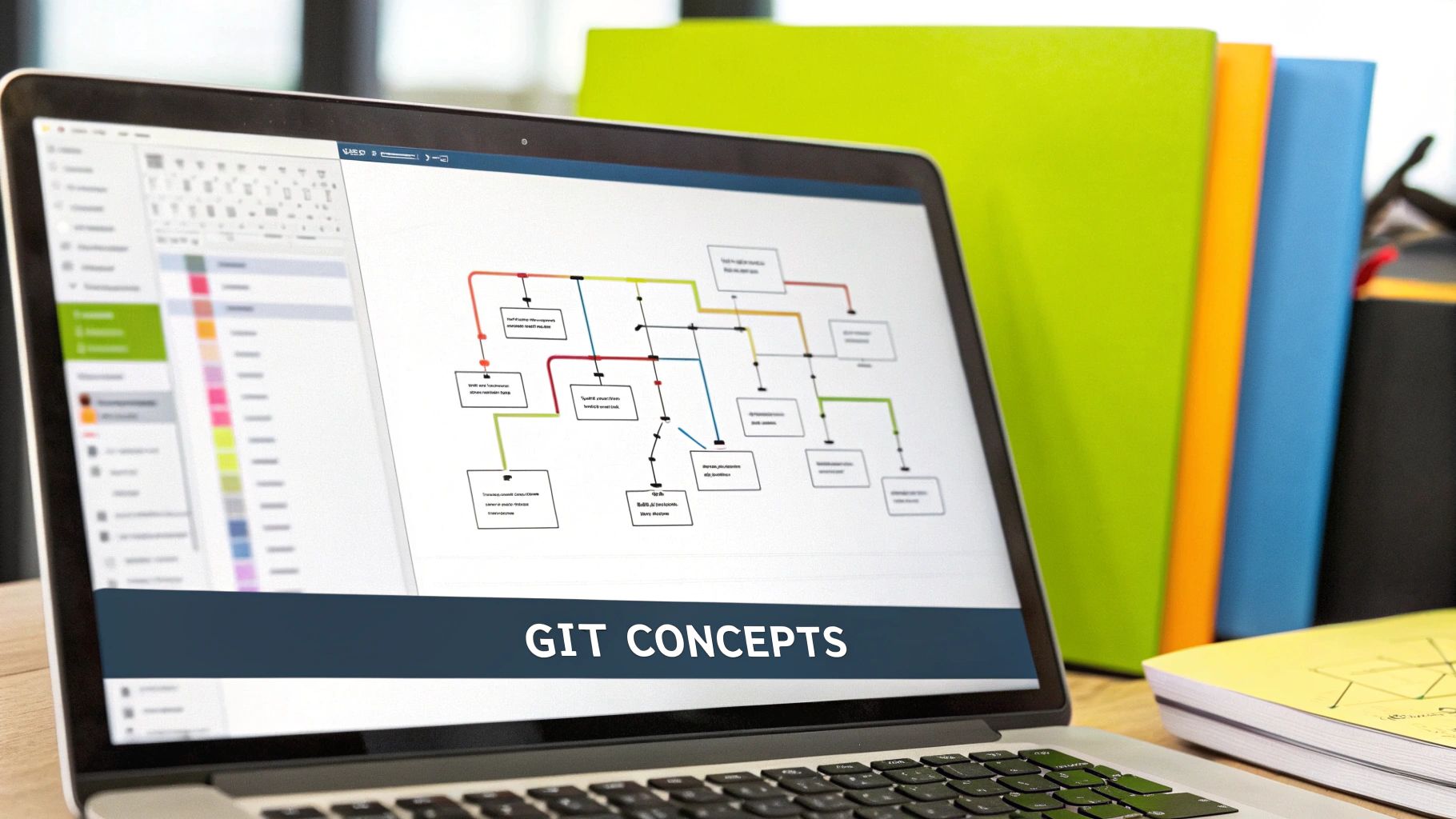
This freedom to work in isolation is what makes modern, collaborative development possible. A team can juggle dozens of features at once, with each one living safely on its own branch. When a feature is finally ready, its path can be seamlessly woven back into the main project.
The Complete Lifecycle of a Branch
Working with branches follows a simple, repeatable cycle. It’s a rhythm you’ll get into every single day, whether you're on a large team or just managing a complex solo project.
Let’s walk through the three key stages:
- Create a New Branch: You start by creating a new branch that splits off from your main project line (often called
mainormaster). At that exact moment, your new branch is a perfect clone of the main one. - Work and Commit: Next, you "check out" or switch to your new branch. All the work you do now—adding files, editing code, making commits—happens only on this separate timeline. The
mainbranch stays clean and untouched. - Merge Back: Once your work is done and tested, you merge your branch's history back into the
maintimeline. Git is smart enough to weave the two histories together, bringing all your new code into the primary project.
Following this process ensures your main branch always remains stable and ready to deploy. All the messy, in-progress work lives on separate branches until it’s polished and good to go.
What Is a Merge Conflict?
Of course, things can get tangled when you’re combining different timelines. A merge conflict happens when you try to merge two branches that have different changes in the exact same spot of the same file. Git can do a lot, but it can't read your mind.
For example, say you edited line 15 of a file on your feature branch. At the same time, a teammate changed that very same line on the main branch. When you go to merge, Git will throw up its hands and ask for your help.
A merge conflict isn't an error. It's just Git's way of saying, "I see two different changes to the same line, and I need a human to decide which one is right."
Git will actually mark up the file with special symbols, showing you exactly where the two conflicting versions are. Your job is to step in and be the tie-breaker.
Resolving Your First Merge Conflict
Seeing a merge conflict for the first time can be a little scary, but fixing one is pretty straightforward. Once Git tells you there's a problem, here’s what you do.
- Identify the Files: Git will give you a list of the exact files that have conflicts.
- Open the Files: When you open a conflicted file, you’ll see sections marked up with
<<<<<<<,=======, and>>>>>>>. The code between<<<<<<<and=======is what’s on your current branch. The code between=======and>>>>>>>is from the branch you're trying to merge in. - Edit to Resolve: Your job is to simply delete all those marker lines and edit the code until it’s correct. You might choose to keep your version, the other version, or even a mix of both.
- Commit the Fix: After you’ve cleaned up the file and saved it, you just add it and make a new commit like you normally would. This final commit locks in your fix and officially completes the merge.
Getting comfortable with branching and merging is what really unlocks the power of Git. It gives you a structured, safe way to manage change, helping teams build better software with far fewer headaches. It turns a potentially chaotic process into an organized and confident workflow.
How Teams Use Git to Collaborate Effectively
While Git is a fantastic tool for a solo developer, its real magic shines when a team gets involved. Git was literally built to manage the beautiful chaos of multiple people working on the same project at once, ensuring no one’s hard work gets accidentally overwritten.
The secret sauce is a simple but brilliant separation between what’s on your computer and what’s shared with the team.
Every developer has their own local repository—a full copy of the project, history and all, living on their machine. This is your personal sandbox. You can create branches, experiment with new ideas, and break things without affecting anyone else. This local copy is then connected to a remote repository, the single source of truth for the entire team, typically hosted on a service like GitHub or GitLab.
This architecture gives you the freedom to do your best work locally. You can tinker, refine, and perfect your code in total isolation. Only when a feature is truly ready for prime time do you share it with the team by syncing it to the remote repository.
Syncing Your Work with the Team
To keep code flowing smoothly between your local machine and the shared remote server, you'll rely on a handful of core commands. Think of these as the heartbeat of any collaborative project, keeping everyone on the same page.
- git clone: This is your starting point. When you join a new project, you'll "clone" the remote repository to create your own complete local copy.
- git pull: You'll use this one all the time. It grabs the latest changes from the remote repository and merges them into your local branch, ensuring you're always working with the most up-to-date code.
- git push: After you've committed your changes locally, this command sends them up to the remote repository so the rest of the team can see and use your work.
This simple rhythm of pulling and pushing prevents the confusion that comes from emailing code files back and forth.
The Power of Pull Requests
Just pushing changes straight into the main project branch can be a recipe for disaster. That's where Pull Requests (or "Merge Requests" in GitLab) come in. A Pull Request isn't just a command; it’s a formal request to merge your finished work into the main branch.
A Pull Request is where the conversation happens. It’s a dedicated space for your team to review your code, suggest improvements, and squash bugs before they ever make it into the live project.
This process is a game-changer for quality control. Team members can leave comments on specific lines of code, ask questions, and ultimately approve the changes once they meet the team's standards. This collaborative review leads to better code, a stronger sense of shared ownership, and a much more reliable final product. For a Shopify store, this process often includes automated checks, which you can learn about in our Shopify Theme Check setup guide.
The Central Role of Platforms Like GitHub
Platforms built on top of Git have become the undisputed hubs for modern software development. GitHub, which launched back in 2008, now hosts over 420 million repositories and is the go-to platform for more than 100 million developers.
The scale is staggering. It runs over 4 million automated workflows every single day, and its security tools have helped fix over 12 million vulnerabilities in just one year. These numbers show just how essential these platforms have become for building software securely and collaboratively.
While Git is the engine for these complex workflows, it's worth noting that some modern platforms are aiming to simplify the development process. For teams Exploring No-DevOps Approaches in Development, Git's role remains as crucial as ever for managing custom code and configurations, even if other parts of the infrastructure are handled automatically.
Popular Git Workflows That Organize Development
Knowing the individual Git commands is one thing. The real magic happens when you use them as part of a shared plan, or workflow, that keeps your whole team on the same page. A good workflow isn't about adding complicated rules; it's about creating a predictable rhythm for collaboration, preventing the chaos that happens when everyone does their own thing.
Without a solid workflow, developers constantly run into nagging questions. "Is it safe to push to the main branch?" or "Where does this urgent bug fix go?" This kind of uncertainty is a huge drag on momentum. By picking a workflow, you’re giving everyone clear answers, making sure the team can build, fix, and ship code without stepping on each other's toes.
The Simplicity of the Feature Branch Workflow
For most teams, the Feature Branch Workflow is the best place to start. It’s based on a single, powerful idea: all new code is written on its own dedicated branch, never directly on main. This one rule is the key to protecting your primary codebase, which should always be stable enough to deploy at a moment's notice.
This approach also keeps your project's history clean and easy to follow. Instead of a tangled mess of commits on the main branch, you get a simple, linear story of features being added one by one. It also means multiple developers can work on different things at the same time without their changes crashing into one another.
Here’s how it works in practice:
- Branch Out: Before you write a single line of code for a new feature or bug fix, you create a new branch from
main. Give it a clear name, likeadd-product-reviews. - Work in Isolation: Do all your coding and commit all your changes on this feature branch. Meanwhile, the
mainbranch stays clean and untouched. - Open a Pull Request: Once your work is done and tested, you open a Pull Request. This is like saying, "Hey team, my code is ready. Can you review it before we add it to
main?" - Review and Merge: Your teammates look over the code, offer feedback, and once it gets the green light, it’s merged into
main. The old feature branch is then usually deleted.
The core idea behind the Feature Branch Workflow is that your
mainbranch is the single source of truth. It should only contain production-ready code, and every commit on it represents a finished, tested, and approved feature.
Introducing the More Structured GitFlow
As a project gets bigger and more complex, some teams need a bit more structure. This is where a more advanced workflow called GitFlow comes in. It’s definitely more prescriptive than the simple feature branch model, but it provides a rock-solid framework for managing formal releases and handling emergencies.
GitFlow is built around two primary, long-lasting branches:
main: This branch is only for official release history. Think of it as a read-only log of what’s live. Each commit here is tagged with a version number (e.g., v1.0, v2.1.5).develop: This is the main integration branch where all the new features come together. Feature branches are merged intodevelop, not directly intomain.
On top of those, GitFlow uses other temporary branches for specific jobs. There are dedicated release branches for preparing a new version for production and hotfix branches for patching urgent bugs on the live site. This strict separation means a last-minute bug fix won’t ever get tangled up with the next big feature you’re building, which is a lifesaver on larger, more complicated projects.
Why Git is a Must-Have for Ecommerce
For any e-commerce business, your online store is more than just a website—it's your digital storefront, your sales engine, and your most important asset. Using Git brings the power of version control directly to your business, creating a safety net that protects revenue, simplifies development, and keeps a perfect record of your store's entire history.
Think about this scenario: you push a simple theme update, but it accidentally breaks your checkout page during a huge sale. Without Git, you're in full-blown panic mode, scrambling to fix it. With Git, it's a calm, one-command rollback to the last stable version. Your site is back online in seconds, and you've just saved yourself from a massive loss in sales.
Protecting Your Most Valuable Asset
Version control gives you a level of stability that's non-negotiable for a serious online store. It means you can manage changes with complete confidence, knowing any mistake can be undone in an instant.
This safety net is huge when you're working with others. You can hire a freelance developer for a new feature, and they can build it in an isolated branch without ever affecting your live, customer-facing site. Their work only gets added to the main theme after it's been tested and approved, which completely removes the risk of pushing buggy code to your customers.
Git creates a detailed, chronological history of every single change made to your store's theme. This is incredibly useful for fixing bugs, meeting compliance standards, and simply understanding how your site has changed over time.
Unlocking Growth and Safe Experimentation
Git isn't just about preventing disasters; it's a tool for growth. Want to try out a new promotional banner for a weekend flash sale? You can build and test it on a separate branch, merge it to go live for the sale, and then easily remove it by rolling back that change once the promotion is over.
This structured way of working is quickly becoming the standard. The global market for version control systems is already valued at USD 1.48 billion and is expected to more than double by 2030. This boom is happening because 73% of users are using built-in automation to speed up their work—a huge advantage in the fast-moving world of e-commerce. You can dig into more stats on the growth of version control systems on mordorintelligence.com.
For Shopify merchants, this is particularly important. Setting up a real workflow is a key step in professionalizing how you manage your store. If you want to dive deeper, check out our guide on version control for Shopify themes with Git. By adopting Git, you're moving away from risky manual edits and embracing a safe, organized, and professional system for your online store.
Git FAQ: Your Questions Answered
As you start wrapping your head around version control, a few questions always seem to come up. It's totally normal. Let's tackle some of the most common ones to help you feel more confident.
What Is the Difference Between Git and GitHub?
This is easily the biggest point of confusion for newcomers, but the distinction is pretty simple once you hear a good analogy. Think of it this way: Git is the engine, and GitHub is the car.
-
Git is the actual software you install on your machine. It’s the command-line tool that does all the heavy lifting—tracking changes, creating branches, and managing your project's history. It’s the powerful engine under the hood.
-
GitHub is a website, a cloud-based service that hosts your Git projects (or repositories). It puts a friendly web interface on top of Git and adds a whole layer of features built for teamwork, like Pull Requests, code reviews, and project management boards.
In short: Git is the tool; GitHub is a place to store your projects and work with others. You can absolutely use Git without ever using GitHub, but you can’t use GitHub without Git.
Can I Use Git for More Than Just Code?
Absolutely! While Git was born in the world of software development, its real superpower is tracking changes in any text-based files. This makes it a fantastic tool for a ton of different projects.
Really, any work that evolves over time and needs a clean history of edits can benefit from Git. For example, you could use it to:
- Write a novel, with each
commitmarking a new draft or chapter revision. - Collaborate on a research paper with your academic colleagues.
- Manage website content, like a series of blog posts or product descriptions.
- Keep a detailed history of your server configuration files.
If you can save it as a text file, Git can track it. Simple as that.
Is Git Hard to Learn?
Let's be honest, Git has a reputation for being tricky. But I think that reputation is a little overblown. The truth is, you can get 90% of the value out of Git just by learning a handful of essential commands: commit, push, pull, and branch.
It might take an afternoon to get set up and comfortable with the basic workflow, but the payoff is huge. The peace of mind you get from having a complete project history is priceless, and the clarity it brings to teamwork is a game-changer. Once you get into a rhythm, it all starts to feel like second nature.
Ready to professionalize your e-commerce development? The team at E-commerce Dev Group specializes in building and managing high-performance Shopify stores using best practices like Git version control. Let's build something great together.
