


Understanding Your Shopify Editing Arsenal
Starting your journey with Shopify is a big step. When it's time to edit your Shopify website, the admin panel might seem a bit daunting at first, which is perfectly normal. Thankfully, Shopify offers a range of tools to help you, and understanding which one suits your needs and skills is the first step.
The Shopify Theme Customizer: Your First Stop
For most visual tweaks, your main tool will be the Shopify Theme Customizer. Consider it the command center for your store's appearance. You can adjust colors, fonts, add your logo, and shift sections on your pages, all without needing to write any code. It’s built to be straightforward, making quick changes easy. Many store owners can get a great deal of customization done with just this tool, particularly if they start with a versatile theme.
When it comes to themes, Shopify presents a broad selection to help you personalize your site. Currently, there are more than 100 free and paid themes available. The Dawn theme is a favorite, used by 25.2% of Shopify stores, with the Debut theme following at 7.5%. This wide choice means you can find something that truly fits your brand. You can find more detailed statistics about Shopify themes on WebFX.
The image below highlights the differences between 'Drag-and-Drop Sections', which you'll often use in the Theme Customizer, and 'Custom Code Snippets'.
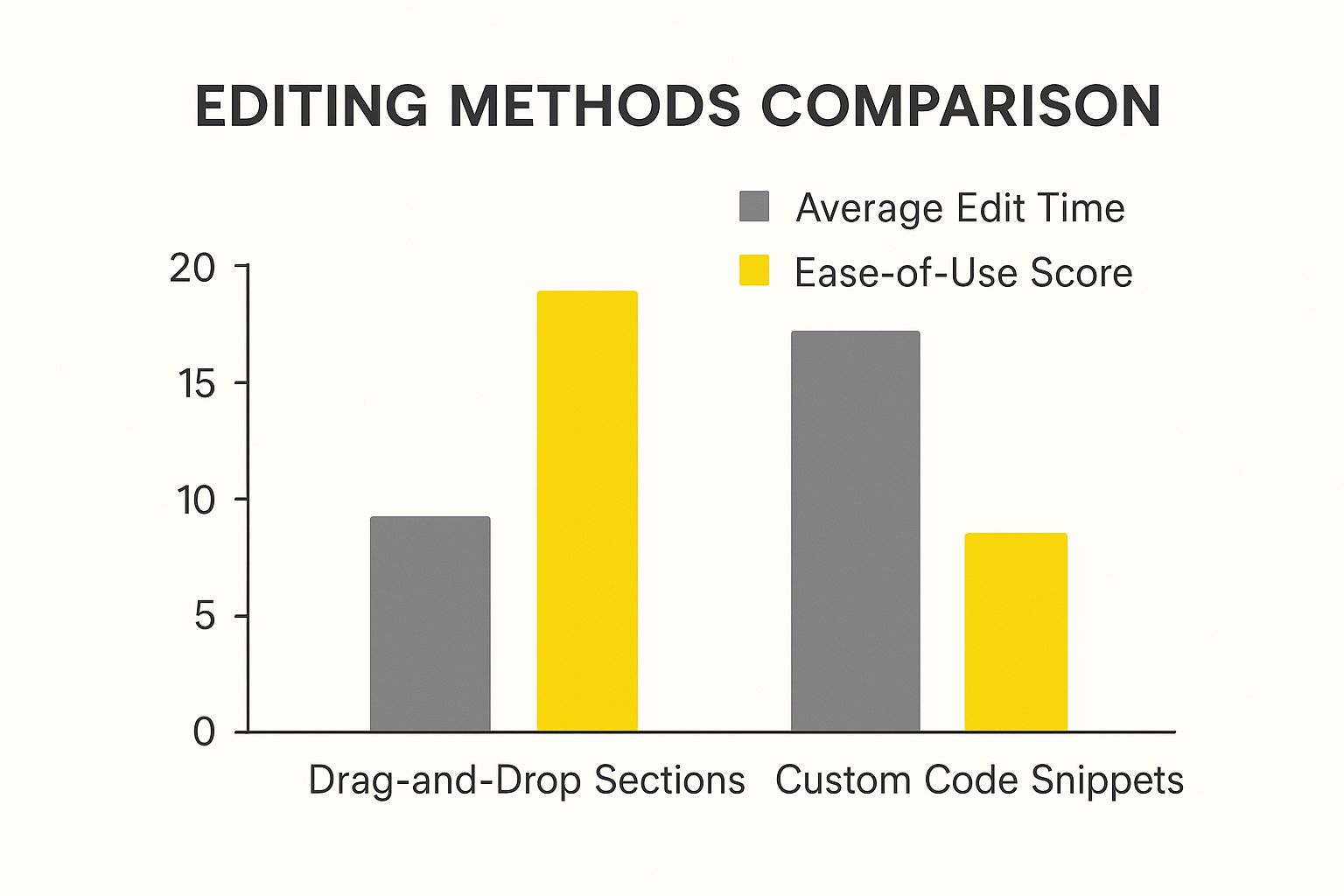
It's clear that drag-and-drop methods are faster and simpler, but custom code gives you far more creative freedom, though it does take more time and technical skill. This difference is key when figuring out how to edit your Shopify website.
Visual Changes vs. Code Customization
When you're looking to edit your Shopify website, your choices usually fall into two camps: using visual tools or editing the code directly. Each has its own set of advantages and disadvantages.
- Visual Editing: This usually means working with the Theme Customizer or various Shopify Apps.
- Benefits: It's generally easy to use, doesn't require coding knowledge, and is quick for common adjustments.
- Drawbacks: Your customization options might be restricted by what your theme or app allows.
- Code Customization: This path involves working with Shopify’s own templating language, Liquid, as well as standard web technologies like HTML, CSS, and JavaScript.
- Benefits: You get total control to create truly unique designs and specific features.
- Drawbacks: This requires technical skills, and errors can cause problems for your site. It also takes more time.
Leveraging Shopify Apps for Enhanced Editing
Shopify Apps can greatly expand what you can do with your store, going beyond the Theme Customizer's features. For instance, page builder apps offer more sophisticated drag-and-drop tools, and other apps can add functions like customer reviews or loyalty programs with little effort.
It's important to select apps thoughtfully, as having too many can affect your site's speed or lead to ongoing expenses. Remember, not every new feature requires an app; sometimes a small adjustment to your theme is all you need.
To help you choose the best way to make changes, the table below, "Shopify Editing Methods Comparison," offers a comparison of different Shopify editing approaches including difficulty level, customization options, and best use cases.
| Editing Method | Difficulty Level | Customization Level | Best For |
|---|---|---|---|
| Theme Customizer | Low | Medium | Basic style changes, reordering sections, and updating content. |
| Shopify Apps | Low to Medium | Medium to High | Adding specific features (like reviews or pop-ups) and advanced page building. |
| Custom Code (Liquid, CSS, JS) | High | Very High | Creating unique designs, custom functionality, and deep theme changes. |
This comparison should help you choose the right method for how to edit your Shopify website, depending on what you want to achieve and how complex the changes are. The main takeaway is that simpler tools are great for quick fixes, while code offers ultimate control for bigger projects.
Knowing When to Call in the Experts
While Shopify makes it possible for you to make many edits on your own, sometimes your ideas might be too complex for the standard tools or your current coding abilities. Pushing for intricate changes without the necessary skills can be frustrating and might even damage your store.
It’s important to know these boundaries. For example, if you're planning major structural alterations or need a totally custom feature, getting professional help is usually the best way to go. For these kinds of advanced needs, you might want to look into Shopify Development services from agencies like Ecorn.
Having a good grasp of Shopify's editing tools and methods will help you make changes to your online store with confidence and achieve the results you're looking for.
Making Your Store Mobile-First (Because It Matters)

Once you get the hang of how to edit your Shopify website, paying attention to the mobile experience is very important. If your online store doesn't work smoothly on phones and tablets, you're likely missing out on sales every day. It’s not just about appearance on small screens; it’s about making shopping easy for many of your customers.
The Mobile Commerce Reality Check
So many people shop on their phones that making your store mobile-friendly is something you absolutely must do to run a successful Shopify store. Think about this: mobile shopping is huge, with up to 69% of online sales on Shopify happening on mobile devices during busy times like Black Friday and Cyber Monday. This large number shows why a mobile-first way of thinking is essential when you edit your Shopify website. You can explore this topic further and see more Shopify statistics. If you don't serve these many shoppers, you're choosing to lose out on most of your possible sales.
Assessing Your Current Mobile Performance
Before you start making changes, it's important to know how your store currently works on mobile devices. Shopify has a built-in mobile preview in the theme editor, which is a good place to begin. This feature lets you see how your pages look on a smartphone as you adjust them.
But don't just rely on the preview. Always test your site on real mobile phones and tablets – using both iOS and Android systems – to see what it's really like for users. Check these things:
- Loading speed: How fast do pages open on a mobile network?
- Navigation: Is the menu easy to spot and use? Are buttons big enough for fingers to tap?
- Readability: Is the text easy to read and the right size?
- Checkout process: Can shoppers fill out forms and buy things without trouble?
Finding these problems is the first step to creating a mobile experience that helps turn visitors into customers.
Key Edits for a High-Converting Mobile Shopify Site
Once you've found what needs fixing, concentrate on making specific changes. Knowing how to edit your Shopify website for mobile shoppers usually means making a few important tweaks that can make a big difference.
Image Optimization is Crucial. Large images that aren't optimized are a main reason for slow loading on mobile. This doesn't mean your images have to look bad.
- Use Shopify’s own feature for making images smaller.
- Pick the right file types (like WebP for good quality and size, JPEG for photos, PNG for graphics that need see-through parts).
- Make sure images adjust and look right on different screen sizes.
Create Touch-Friendly Navigation. People use their fingers on mobile screens, so your site's navigation parts need to be easy to tap.
- Simplify your menu: Don't use menu bars that are too busy or confusing.
- Ensure buttons and links are tappable: Leave enough room around things people tap to avoid wrong clicks. Thumb-friendly design is very important.
- Make it quicker for users to get to product pages and checkout, using fewer taps.
Avoid Common Mobile Mistakes. Many store owners, even those with experience, can make these errors.
- Intrusive pop-ups: Make sure any pop-ups are easy to shut on mobile and don’t block important information.
- Tiny text or elements: If people have to keep pinching and zooming, they will probably go elsewhere.
- Non-responsive design: Check that everything on your site fits well on smaller screens.
These changes can greatly improve how easy your site is to use. To learn more about visual adjustments for your Shopify store that also help mobile users, look at this guide on how to customize your Shopify website. In the end, spending time on mobile optimization when you edit your Shopify website means you'll likely get more sales and more satisfied customers.
Creating a Brand Experience That Converts

While a great mobile experience is a key part of making sales, the overall look and feel of your store—your brand experience—is just as important for turning visitors into loyal customers. This is more than just uploading a logo or changing a few colors. It’s about creating a specific atmosphere that connects with your target customers and earns their trust right away. Good design choices are key to how to edit your Shopify website for more sales.
Strategic Homepage Layout: Your Store's First Impression
Your homepage is like your shop's main window, and you have only a few seconds to grab attention. Studies show that visitors form an opinion about a website in as little as 50 milliseconds. This means your homepage must quickly show what your brand offers and why it's special, and help visitors easily find what they need. Successful Shopify stores do this through:
- Clear Value Proposition: Shown clearly, telling visitors what you sell and why it’s valuable.
- High-Quality Visuals: Attractive images or videos that match your brand’s style.
- Featured Products/Collections: Highlighting popular or new items to draw people in.
- Intuitive Calls-to-Action (CTAs): Buttons or links that guide users to shop, learn more, or sign up.
Putting these parts together thoughtfully using your theme's customization options is a key way to how to edit your Shopify website well.
Intuitive Navigation and Product Presentation
Once visitors look past the homepage, easy-to-use navigation is essential. If users can't find what they're looking for easily, they get frustrated and are much more likely to leave their carts. In fact, poor website usability is a key reason why many online businesses struggle. Think about these for navigation:
- Logical Menu Structure: Keep your main menu simple and organized.
- Visible Search Bar: Make it easy for users who already know what they want.
- Breadcrumbs: Help users see where they are on your site.
This also affects how you show your products. Your product pages are where many customers decide to buy. To build trust and make products appealing:
- Use clear, multi-angle product photos and videos.
- Write detailed descriptions that focus on benefits.
- Include customer reviews and social proof.
Using Theme Settings and Custom Sections for Brand Cohesion
Shopify's theme settings offer great tools for keeping your brand look consistent, but they should be used carefully. Brand consistency across all channels can lead to an average revenue increase of 23%. This means carefully choosing and using:
- A consistent color scheme that shows your brand's personality.
- Typography choices (fonts and sizes) that make text easy to read and match your brand's style.
- Imagery style that is the same everywhere on your site.
Sometimes, your theme's default sections don't quite fit what your business needs or your marketing plans. This is when knowing how to edit your Shopify website to add custom sections is really useful. These could be designed to show off unique selling points, feature content from users, or tell your brand’s story in more detail. These custom touches help create a consistent and memorable brand feel.
Ultimately, creating a brand experience that leads to sales is about choosing designs carefully to make your store look good and, more importantly, work well for your customers. This means customers have a better time shopping, and your business can do better.
Optimizing Your Checkout for Maximum Conversions
When a shopper adds items to their cart, it's a good sign. However, the sale isn't truly made until the payment goes through. Every cart someone leaves behind means a potential sale is lost, frequently because of snags in the checkout process. The bright side is that many of these hurdles can be sidestepped if you know how to edit your Shopify website to make paying simpler. This goes beyond just looks; it's about methodically taking down roadblocks that keep customers from completing their orders.
Streamlining the Path to Purchase
The main goal of checkout optimization is to make the entire process as easy as possible for the customer. Think about it from their perspective: they've already decided they want your product. Any extra steps or confusing parts can make them reconsider. Adjusting your Shopify checkout to reduce these difficulties is essential.
Here are some key approaches:
- Guest Checkout: Requiring account creation is a big turn-off for new shoppers. Make sure to always provide a guest checkout alternative.
- Progress Indicators: Show customers clearly where they are in the checkout steps (e.g., Step 1 of 3). This helps manage their expectations and lessens any unease.
- Minimal Form Fields: Only request the information you absolutely need. Each additional field is another chance for a customer to leave. Shopify's checkout is quite efficient, but double-check that your modifications don't introduce needless complexity.
- Clear Call-to-Action Buttons: Use noticeable buttons with clear labels like "Continue to Shipping" or "Complete Purchase."
By making these parts simpler, you cater to the customer's desire for ease and clarity, increasing the likelihood they'll finish their purchase. For specific advice on making this experience better on mobile devices, take a look at our guide on How to Optimize Shopify Mobile Checkout for Conversions.
Building Trust at the Point of Sale
As customers get closer to paying, trust becomes even more important. They are about to give you sensitive financial details, so making them feel secure is vital. You can set up payment choices and show trust signals within your Shopify settings.
For example, offering several payment methods accommodates different preferences and helps build confidence. Think about adding popular digital wallets in addition to standard credit cards. Shop Pay, Shopify’s own quick checkout option, is used by about 2 million websites around the world, with over 1 million in the U.S. While the average conversion rate for Shopify stores is around 1.4%, the top 10% of stores see rates above 4.7%. Using tools like Shop Pay can make transactions much smoother, potentially improving your own conversion numbers. You can Discover more insights about Shopify statistics and conversion rates here.
Also, make sure to visibly display:
- Security Badges: SSL certificates (Shopify provides this for the checkout) and logos of payment processors (like Visa, Mastercard, PayPal) help show that the transaction is secure.
- Clear Return Policy & Contact Info: Make this information easy to find on the checkout page to handle any last-minute questions or worries.
Encouraging Completion and Recovering Lost Sales
Even with an easy-to-use and trustworthy checkout, some shoppers will still leave their carts. This is where you need to be proactive. You can create a gentle sense of urgency without being too pushy. For instance, showing low stock levels for items in the cart can encourage an immediate purchase; this is often a setting you can adjust through theme customizations or apps.
Abandoned cart recovery emails are a strong feature in Shopify that you can tailor. These automatic emails remind customers about the products they didn't buy and can offer small perks like a discount or free shipping to nudge them to complete their order. Experiment with different sending times and messages to find out what connects best with your customers. Fine-tuning these automated emails is a key part of learning how to edit your Shopify website for the best sales results.
Successful Shopify store owners know that the checkout page isn't just for transactions; it's a vital part of the entire customer journey. By concentrating on removing obstacles, building trust, and using smart recovery methods, you can turn more window shoppers into regular customers.
Strategic App Integration That Actually Pays Off
Adding new features to your Shopify store with apps sounds great, but it's often a tricky spot for many online sellers. Not every app available for Shopify is a winner, and picking unsuitable ones can really drag down your store's loading time. This is a big deal, as slow speeds can affect up to 70% of shoppers' decisions to purchase.
Picking apps without a clear plan can also waste money on functions that don't give you much back. The idea is to create a solid set of apps that genuinely improve what your store can do and how customers experience it, all without slowing things down or costing too much. This involves knowing how to edit your Shopify website by carefully choosing tools that help your business goals.
Evaluating Apps Before You Click 'Install'
Before you install any app on your Shopify store, taking the time to check it out properly is very important. Smart store owners look beyond the flashy features advertised. They start by reading customer reviews, especially recent ones, looking for comments about site speed or issues with other apps. Also, check how often the app is updated; regular updates usually mean the developers are actively working on it and providing support.
Ask yourself these important questions when you're looking at an app:
- What exact problem will this app fix for my store? Don't install apps just because they sound cool.
- Could I solve this with features Shopify already has or by making simple changes to my theme? Sometimes, a small adjustment to your theme is enough.
- How much does the app cost, and is there a free trial period? Be clear on the ongoing expenses.
- Is their customer support quick to respond and genuinely helpful? Chances are, you'll need their help sooner or later.
This detailed checking is a core part of managing how to edit your Shopify website well when using tools from other companies.
App Categories That Genuinely Drive Results
Every business will have a slightly different "ideal" set of apps, but some types of apps consistently offer real benefits by tackling essential e-commerce tasks. Rather than trying out every shiny new app, it's better to concentrate on those that improve key parts of your store.
- Email Marketing Automation: These apps are great for building connections with customers and getting back sales you might have lost. They can send automatic emails like welcome messages, reminders for abandoned carts, and follow-ups after a purchase. Good email marketing can bring in around 20% of total sales for many online stores.
- Inventory Management: If your store has many different products or variations (SKUs), these apps are vital. They help stop you from selling items you don't have and keep your stock levels accurate, particularly if you sell on more than one platform.
- Customer Service Tools: Apps that offer features like live chat, helpdesk systems, or tools to build FAQ pages can make a big difference in the shopping experience. This can lead to happier customers and more sales.
- Reviews and User-Generated Content (UGC): What other people say about your products is very influential. Apps that help you collect product reviews, customer photos, and Q&A sections build confidence and add useful content to your site.
Here’s a look at some Essential Shopify Apps by Category. This table offers a breakdown of must-have Shopify apps organized by business function, along with key features to consider and typical pricing information, to help you choose wisely.
| App Category | Top App Options | Key Features | Pricing Range |
|---|---|---|---|
| Email Marketing | Robust automation, segmentation, analytics | Abandoned cart recovery, welcome series, campaign builders | Freemium to $100+/month |
| Inventory Management | Real-time syncing, low stock alerts, purchase orders | Multi-location support, kitting/bundling, forecasting | $20 – $200+/month |
| Customer Service | Live chat, ticketing system, knowledge base integration | Canned responses, chat analytics, AI-powered assistance | Freemium to $50+/user/month |
| SEO & Site Speed | Meta tag editing, image compression, sitemap management | Broken link checker, schema markup, lazy loading | Freemium to $50+/month |
| Customer Reviews | Photo/video reviews, Q&A, automated review requests | Rich snippets, customizable widgets, review moderation | Freemium to $100+/month |
Choosing apps from these categories can significantly improve how your store operates and how customers interact with it. Remember to align your choices with your specific business needs.
Configuring Integrations and Monitoring Performance
After you’ve selected your apps, setting them up correctly is really important. Make sure they work well together and don’t cause any conflicts. This usually means following the setup instructions carefully and doing plenty of testing. Once they're set up, you need to keep checking how they perform. Watch your store’s loading speed using tools like Google PageSpeed Insights. An app that makes your site slow can cancel out any good things it offers.
It's also a good idea to check your app subscriptions regularly. Ask yourself if an app is still useful, or if a new Shopify feature or another tool now does the same job better. Don’t hesitate to uninstall apps that create more headaches than they solve or that you no longer really need.
When setting up apps, also consider how they might affect other technical parts of your store. For example, keeping your sitemap correct is important for search engines to find your pages. If you're looking for more information on this, you might find this guide on How to Edit Shopify XML Sitemaps helpful for keeping that part of your site in good shape. The main takeaway is that adding apps smartly is a continuous cycle of checking, improving, and sometimes, removing them.
Testing and Performance That Actually Matters
Even if you've picked the perfect apps, your Shopify store's speed and reliability are what truly count. You can have the most beautiful, carefully edited website, but if it breaks or slows down when people try to buy, it's not doing its job.
That's why solid testing and focusing on performance are key to making your Shopify edits successful. Let's look at how smart store owners test their sites to find issues before they cost them money.
Why Rigorous Testing Is Non-Negotiable
Think about it: you spend ages getting your product pages just right, but then a customer finds a broken "Add to Cart" button or gets stuck in a super slow checkout. It's more than just annoying; it costs you.
Poor performance means abandoned carts, lost sales, and a hit to your brand's reputation. Even small changes you make when you edit your Shopify website, like a theme adjustment or a new bit of code, can mess things up elsewhere. Proper testing isn't optional; it’s essential for running a healthy online store.
Practical Approaches to Store Functionality Testing
To make sure your customers have a smooth shopping trip, you've got to check every important part of your store. Being proactive here helps you catch and fix problems tied to how to edit your Shopify website before they hurt your sales.
- Basic Navigation Testing:
- Click every link in your main menu, footer, and within your page content.
- Try out your site's search with different words, including common typos.
- If you use breadcrumbs, make sure they correctly show where the user is.
- Product Page and Cart Functionality:
- Check that all product options (like sizes or colors) can be picked and added to the cart.
- Make sure product images, descriptions, and prices are showing up right.
- Test adding things to the cart, changing how many you want, and taking items out.
- Checkout Process Scrutiny:
- This is a big one – it’s where sales are made or lost. Run some test orders. If you can, try different payment methods; Shopify Payments has a test mode for this.
- See if discount codes work as they should and that shipping options show up correctly.
- Confirm that the whole journey from cart to the order confirmation page is smooth and bug-free.
- Cross-Device and Cross-Browser Compatibility:
- Your store needs to work perfectly on computers, tablets, and different smartphones (both iOS and Android). Use browser developer tools or online simulators to see how it looks on various screen sizes.
- Test on popular browsers like Chrome, Safari, Firefox, and Edge, because they can sometimes display things differently.
Identifying and Fixing Performance Bottlenecks
A slow website is a sure way to lose sales. It's been shown that just a 1-second delay in page load time can lead to a 7% drop in conversions. Knowing how to spot and solve these slowdowns is a big part of successfully editing your Shopify website.
- Using Free Performance Analysis Tools:
- Tools like Google PageSpeed Insights and GTmetrix give you great information about your site's speed. They point out what to improve and grade your site on things like Largest Contentful Paint (LCP), which checks loading speed, and Cumulative Layout Shift (CLS), which looks at how stable your page is visually.
- Common Performance Killers and Quick Wins (No Coding Needed):
- Image Optimization: Make sure all your images are compressed to reduce file size without losing too much quality. Use the right formats (like WebP or JPEG for photos, and PNG for graphics that need a transparent background). Shopify helps with this, but big, uncompressed images can still cause delays.
- App Management: Apps add features, but too many, or ones that aren't well-made, can really slow things down. Regularly look at your apps and get rid of any you don't use.
- Theme Efficiency: Some themes are naturally lighter and quicker than others. If speed is a big problem for you, your theme could be part of the reason.
- Lazy Loading: This method waits to load images and videos that aren't critical until they're about to appear on the screen. This helps your page load faster at first. Many new Shopify themes have this built in.
To dive deeper into specific techniques for boosting your store's speed, learn more in our article about Shopify Performance Optimization.
Establishing a Systematic Testing Routine
Testing isn't something you do just once or when you remember. It should be a regular part of your routine whenever you edit your Shopify website.
- When to Test:
- After you change or update your theme.
- After installing, updating, or removing an app.
- Before you kick off big sales or promotions.
- Every so often, maybe once a month, even if you haven’t made big changes.
- Creating a Checklist:
- Make a simple checklist that covers all the important functions we talked about. This helps you be consistent and thorough. Many store owners have learned the hard way, losing money from bugs that could have been caught after an update.
Monitoring and Maintaining Optimal Performance
Lastly, keeping your store running well is something you always need to do. It’s smart to set up ways to keep an eye on your store's health.
- Ongoing Performance Monitoring: Watch your Shopify analytics and Google Analytics. Look for any strange drops in sales or big jumps in people leaving your site quickly, as these could point to performance problems. Google Search Console also gives you reports on Core Web Vitals.
- Proactive Maintenance: Regularly check the apps you have installed to see if they're still useful and not hurting performance. Keep your theme updated, because updates often come with speed improvements and bug fixes. (Always test updates on a backup copy of your theme or a staging site first if you’ve made a lot of custom changes).
The main takeaway is this: regular testing and a focus on performance are vital. They make sure your carefully edited Shopify website doesn't just look good, but also works smoothly for every single customer, every time. This effort leads directly to a better experience for users, more sales, and steady business growth.
Key Takeaways
Getting good at how to edit your Shopify website isn't a one-time thing. It’s about really knowing your tools, making changes that count, and always tweaking things. These key points break down what you need to do for happier customers and more sales, so you know where to put your energy.
Laying Your Editing Foundation
To start, you need a good handle on what Shopify's main editing features can do. Don't jump into tricky code changes right away. Instead, get comfortable using the tools already there. This first step is all about feeling more sure of yourself and seeing quick, positive changes to your store.
- Action Items:
- Spend time exploring your Shopify Theme Customizer. Get hands-on with changing colors, fonts, and how sections are laid out.
- Figure out the usual visual tweaks your store needs and get good at doing them with the customizer.
- Before you install any app, be clear about what problem you expect it to fix. See if a simple theme change could do the job instead.
- Success Metrics: You’ll know you’re on the right track when you spend less time on simple visual changes and feel more confident making everyday updates to your site.
- Warning Signs: Watch out if you keep running into walls with what your theme can do, or if small visual changes take way too long. This could mean it's time to think about a more adaptable theme or getting help from a professional designer.
Prioritizing Mobile and Brand for Engagement
Once you've got the basics down, turn your attention to how customers see and use your store, especially on their phones. A consistent brand feel and a smooth mobile experience aren't just nice-to-haves anymore; they're essential for turning visitors into buyers.
- Action Items:
- Regularly check the whole shopping process on different mobile devices, not just relying on the Shopify preview.
- Put image optimization techniques into practice: make sure your images are compressed and in the right file types.
- Set clear brand guidelines for colors, fonts, and your tone of voice, and use them on every page.
- Take a hard look at your homepage. Does it get your main message across in just a few seconds?
- Success Metrics: Success here looks like better sales from mobile users, fewer people leaving your site quickly on mobile, and good comments from customers about how easy your site is to use.
- Warning Signs: Be concerned if your analytics show much higher bounce rates or lower sales on mobile than on desktop. Another red flag is if your brand looks or feels different from one part of your site to another.
Refining Critical Paths: Checkout and Performance
A great-looking store can still lose sales if checking out is a hassle or pages take too long to load. Fine-tuning these key areas is vital for getting more conversions and keeping customers happy. This is a really important part of learning how to edit your Shopify website effectively for business growth.
- Action Items:
- Make your checkout process smoother: enable guest checkout and keep the number of form fields to a minimum.
- Show trust signals like payment logos and security badges clearly, and make sure your return policy is easy to find.
- Set up and personalize abandoned cart recovery emails.
- Often check your site's speed with tools like Google PageSpeed Insights and work on the main suggestions it gives.
- Success Metrics: You'll see success through fewer shoppers leaving items in their cart, quicker average page load times (try to get your LCP under 2.5 seconds), and better Core Web Vitals scores.
- Warning Signs: Worry if lots of people are still abandoning carts even after you've made checkout simpler. Also, if your site speed scores stay low after you've optimized images and looked at app performance, that’s a concern.
Strategic App Use and Continuous Testing
Shopify apps can add new features to your store, but you need to pick and manage them carefully. Along with regular, thorough testing, this helps make sure your site stays strong and works well as it changes.
- Action Items:
- When looking at new apps, read recent reviews, see how often they're updated, and always test them during any trial period.
- Concentrate on apps that address real business needs, like those for email marketing, customer reviews, or better search functions.
- Create a checklist to test all key functions (like navigation, adding to cart, and checkout) before launching any big site changes or after installing a new app.
- Success Metrics: Positive signs include getting a good return on the apps you use, your site performing reliably and quickly, and being able to find and fix any bugs fast after updates.
- Warning Signs: Keep an eye out for your site slowing down noticeably after you install a new app. Other issues are apps clashing with each other often, or essential features suddenly not working.
Becoming skilled at editing your Shopify website comes from practice and paying attention to the details. By using these main points, you can make changes that don't just make your store look better but also bring in actual business.
If these steps feel a bit much, or if you want more advanced customizations and performance boosts to make your store stand out, our experienced team at E-commerce Dev Group can help. Find out how our specialized Shopify design, development, and optimization services can improve your online business by visiting ScaleShopify to learn more.
